Author: Andy

  • Why Are We Still Paying for MS Office in 2026 When Free Alternatives Do the Same Job?

    Why Are We Still Paying for MS Office in 2026 When Free Alternatives Do the Same Job?

    For years, Microsoft Office has been treated as the default – almost untouchable.
    But here’s a more uncomfortable truth in 2026:
    A lot of people aren’t choosing Microsoft Office anymore… they’re just stuck with it.
    And the reasons to question that default are piling up.


    ⚠️ The Friction Nobody Talks About

    🔄 Forced UI Changes (a.k.a. “Relearn Your Job Again”)

    With Microsoft 365, updates are constant – and so are interface changes.

    Not optional. Not reversible. Not negotiable.

    • Menus get reshuffled
    • Buttons disappear or move
    • Features are renamed or buried
    • Entire workflows shift

    Sometimes overnight, your daily tools feel unfamiliar.

    For a solo user, it’s annoying.
    For a business, it’s operational damage:

    • Lost hours across teams
    • Constant “where did that go?” moments
    • Ongoing retraining (formal or not)
    • Frustration that quietly kills productivity

    And here’s the key issue:

    You’re not in control of your own tools anymore.


    💸 The Subscription Trap

    What used to be a one-time purchase is now a permanent cost.

    Per user. Per month. Forever.

    Scale that across a company and you’re not buying software – you’re renting dependency.


    🐢 Heavy, Bloated, Resource-Hungry

    Modern Office apps are powerful – but increasingly sluggish, especially on older machines.

    Meanwhile, lighter alternatives run faster and smoother on the same hardware.


    🔒 Vendor Lock-In (Still a Thing)

    Even in 2026, many organisations feel tied to Microsoft formats and workflows.

    But here’s what often gets overlooked:

    That lock-in is weaker than you think.


    🆓 The Part Most People Ignore

    There are free, open-source alternatives that already do almost everything most users need:

    And yes – this matters:

    👉 Both can open, edit, and save Microsoft Office files (.docx, .xlsx, .pptx) with very high accuracy.
    For the vast majority of real-world use cases, the compatibility is more than good enough.

    So again…

    Why are we still paying?


    ⚖️ LibreOffice vs OpenOffice vs Microsoft Office (2026 Comparison)

    Feature / AspectLibreOfficeOpenOfficeMicrosoft Office
    Cost✅ Free✅ Free❌ Subscription
    Open Source✅ Yes✅ Yes❌ No
    Development Activity✅ Very active⚠️ Slow✅ Active
    MS File Compatibility✅ Excellent👍 Good✅ Native
    Performance✅ Fast, lightweight👍 Moderate⚠️ Heavy
    UI Stability✅ Consistent (user choice)✅ Very stable❌ Frequently changing
    Forced Updates❌ No❌ No❌ Yes
    Cloud Dependency❌ Optional❌ Optional⚠️ Increasingly required
    Privacy / Control✅ High✅ High⚠️ Limited
    Best ForPower users, businessBasic usersEnterprise ecosystems

    🧩 Feature Comparison (What You Actually Get)

    CapabilityLibreOfficeOpenOfficeMicrosoft Office
    Word Processing✅ Writer✅ Writer✅ Word
    Spreadsheets✅ Calc✅ Calc✅ Excel
    Presentations✅ Impress✅ Impress✅ PowerPoint
    Database Tool✅ Base✅ Base⚠️ Access (limited use today)
    Drawing / Diagrams✅ Draw✅ Draw⚠️ Basic tools only
    PDF Export✅ Built-in✅ Built-in⚠️ Limited / indirect
    Extensions / Plugins✅ Yes⚠️ Limited✅ Yes
    Offline Use✅ Full✅ Full⚠️ Pushed to cloud
    Cross-Platform✅ Strong✅ Strong⚠️ Best in Windows ecosystem

    🤔 Let’s Be Honest for a Second

    If:

    • Free tools can handle your files
    • Your team can learn them in a day or two
    • You avoid forced UI changes
    • You eliminate recurring costs
    • You gain control over updates and workflows

    Then…

    Is Microsoft Office still the “best tool”… or just the most entrenched habit?


    🧠 For Businesses: This Is Bigger Than Software

    This isn’t just about saving a few quid on licences.

    It’s about:

    • Stability in workflows
    • Control over your tools
    • Reduced dependency on a single vendor
    • Predictable user experience (no surprise UI changes)

    And yet, many companies continue paying—not because they’ve evaluated alternatives…

    …but because switching feels uncomfortable.


    🚀 Final Thought

    In 2026, sticking with Microsoft Office without questioning it is a bit like still paying for expensive cable TV… while ignoring streaming exists.

    Tools like LibreOffice aren’t “budget alternatives” anymore.

    They’re mature, capable, and—crucially—respectful of the user.

    So the real question isn’t:

    “Are free office suites good enough?”

    It’s:

    “Why are we still tolerating the downsides of Microsoft Office?”
  • Best GIMP 3.2+ Plugins That Actually Work in 2026

    Best GIMP 3.2+ Plugins That Actually Work in 2026

    With the release of GIMP 3.2, the software has finally stepped into a modern era – faster performance, non-destructive editing, and a cleaner architecture.

    But there’s a catch.

    Most classic plugins from GIMP 2.x no longer work due to the move to Python 3 and a new plugin API. That means only a small but growing set of plugins are fully compatible in 2026.

    The good news? The essential ones are already here – and they’re powerful.

    This guide lists the best GIMP 3.2+ plugins that actually work right now, so you don’t waste time installing broken ones.

    🔥 Best GIMP 3.2 Plugins (With Direct Links)

    • Smart object removal
    • Texture generation
    • “Heal Selection” (like Photoshop)

    ⚠️ Note: these are only a few of the powerful features we are used from our beloved plugins over the years. I am personally testing as many of these plugins I can and will update this article quite often, so come back to it and please feel free to comment if you have any thoughts, advices or opinions about this.


    1. G’MIC (GREYC’s Magic for Image Computing: A Full-Featured Open-Source Framework for Image Processing)

    Download G’MIC-Qt plug-in for GIMP 3

    • ✅ Fully working in GIMP 3+
    • 🔥 Most important plugin right now
    • 500+ filters, effects, AI-ish stuff

    👉 You have the great one-off installer above and if you want the source code on github – G’MIC-Qt, a plug-in to bring G’MIC capabilities to the image retouching and painting software GIMP, Krita, Photoshop, Affinity Photo, PaintShop Pro, PhotoLine and Paint.NET.


    2. Resynthesizer for GIMP 3.0

    👉GitHub source: https://github.com/bootchk/resynthesizer

    A very good chat/article about installing on Windows for the latest GIMP 3.2.2:
    https://gimpchat.com/viewtopic.php?f=33&t=21535&start=0

    It has a download link too for a Resynthesizer3.0.zip file.

    I tested it and the way it works is, after downloading, you unzip it and then copy from the Resynthesizer3.0 folder the two folders separately in the C:\Users\{YOUR-USER}\AppData\Roaming\GIMP\3.2\ script and plug-ins.

    Then you should see in GIMP menu Filters > Resintherizer
    Give it a go and let me know in the comments if it worked for you too.


    3. BIMP (Batch Image Manipulation Plugin)

    👉 Download BIMP Plugin

    • Resize hundreds of images
    • Batch watermarking
    • Bulk format conversion

    💡 Ideal for:

    • Ecommerce
    • Websites
    • Automation workflows

    I’m still in the process of testing this. It seems to try to find the GIMP install folder, but I couldn’t make it recognise it yet, but I’m actively researching and will get back with more notes.


    4. PhotoGIMP

    👉 Download PhotoGIMP for Windows and Linux

    PhotoGIMP is a free, community-driven patch that transforms GIMP (GNU Image Manipulation Program) into a layout that feels familiar to Adobe Photoshop users. If you’re switching from Photoshop to GIMP and want to feel at home right away, PhotoGIMP is for you.
    It will also change the keyboard shortcuts to match Photoshop ones as close as possible.

    IMPORTANT NOTE: in order to install you need to copy and overwrite a lot of GIMP default files and folders, so make sure you BACK UP your settings folder before, in case you want to keep the default GUI and settings.


    5. Liquid Rescale (LQR)

    👉 Download Liquid Rescale

    • Smart image resizing (seam carving)
    • Keeps important objects intact

    💡 Great for:

    • Social media images
    • Responsive banners

    6. NormalMap Plugin

    👉 (Usually bundled or via Flatpak extensions)

    • Converts images to normal maps
    • Used for game dev / 3D assets

    💡 Works best via:

    • Flatpak plugin ecosystem
    • Prebuilt plugin packs

    7. GEGL Plugin Packs (Future-Proof Plugins)

    👉 Built directly into GIMP / extensions

    • Native processing engine plugins
    • Faster + more stable
    • Includes blur, glow, artistic effects

    💡 These are the future of GIMP plugins
    No compatibility headaches


    8. Batcher Plugin (Advanced Automation)

    👉 Community builds (Pixls / GitHub)

    • Advanced batch workflows
    • Combine filters + scripts

    💡 Perfect for:

    • Agencies
    • High-volume image processing

    9. NikGimp (Nik Collection Integration)

    👉 https://iiey.github.io/nikgimp/

    • Brings professional Nik filters into GIMP
    • HDR, color grading, film effects

    💡 More advanced setup, but powerful


    10. Darktable (RAW Workflow Integration)

    👉 https://www.darktable.org/

    • Professional RAW editing
    • Lightroom alternative

    💡 Used alongside GIMP for pro photography


    11. Flatpak Plugin Extensions (Recommended Method)

    👉 Use command:

    flatpak search org.gimp.GIMP.Plugin
    • Official plugin ecosystem
    • Sandboxed + compatible
    • Includes:
      • G’MIC
      • BIMP
      • Resynthesizer
      • Liquid Rescale

    Flatpak packages already include several popular plugins in a compatible format


    ⚠️ What Actually Works in 2026 (Reality Check)

    Let’s be real for a second:

    • ❌ Most GIMP 2 plugins are broken
    • ❌ Old tutorials are outdated
    • ❌ Random ZIP downloads = risky

    ✔️ What works:

    • Actively maintained plugins
    • Flatpak ecosystem
    • Python 3 compatible scripts

    Confirmed working plugins include:

    • G’MIC
    • Resynthesizer
    • BIMP
    • Liquid Rescale
    • NormalMap

    💻 Cross-Platform Notes (Important)

    PlatformStatus
    Windows✅ Best support (most plugins available)
    Linux✅ Best overall (especially Flatpak)
    macOS⚠️ Limited (some plugins require manual build)

    GIMP itself is fully cross-platform across all major systems


    💡 Best Setup (Recommended by WebCreative)

    If you want zero headaches:

    👉 Install GIMP via:

    • Flatpak (Linux)
    • Official installer (Windows)

    👉 Then install:

    1. G’MIC
    2. BIMP
    3. Resynthesizer

    That combo alone gives you:

    • Effects
    • Automation
    • Object removal

    👉 Basically 90% of what most users need


    🚀 Final Thoughts

    GIMP 3.2 is a reset moment.

    The plugin ecosystem is smaller — but much cleaner and more modern.

    And honestly?
    If you stick to the plugins above, you’ll have a powerful, professional-grade setup without the usual frustration.

  • How to Add a 3D Viewer to Any Website (Step-by-Step Guide)

    How to Add a 3D Viewer to Any Website
    (Step-by-Step Guide)

    Adding a 3D viewer to your website is one of the most powerful ways to increase engagement, improve product understanding, and boost conversions.

    Whether you run an eCommerce store, a product showcase, or a portfolio site, an interactive 3D viewer allows visitors to rotate, zoom, and explore products directly inside the browser — without installing anything.

    In this guide, you’ll learn exactly how to add a 3D viewer to any website, including WordPress, Shopify, WooCommerce, and custom-built sites.


    Why Add a 3D Viewer to Your Website?

    A modern 3D Viewer for Websites helps you:

    • Increase time on page
    • Improve user engagement
    • Reduce product return rates
    • Showcase complex products clearly
    • Stand out from competitors

    Unlike static images or 360° photo rotations, a real WebGL-based 3D viewer allows infinite rotation, zoom, lighting interaction and material realism — all rendered live in the browser.

    For businesses selling furniture, tech, jewellery, machinery or architectural services, this can significantly improve user confidence and buying decisions.


    What You Need Before Getting Started

    To embed a 3D viewer on your website, you’ll need:

    1. A 3D model file (preferably GLB format)
    2. A lightweight WebGL viewer
    3. A simple embed method (HTML snippet)

    If your model is in OBJ or FBX format, you can convert it to GLB using Blender or other 3D tools.


    Step 1 – Prepare Your 3D Model (GLB Format)

    GLB is the best format for web-based 3D viewing because it is:

    • Compact
    • Fast-loading
    • Texture-embedded
    • Optimised for browser rendering

    For best performance, keep models under 10MB where possible.


    Step 2 – Use a Web-Based 3D Viewer

    A WebGL-powered viewer runs directly inside the browser.

    A professional 3D viewer should include:

    • Smooth rotation
    • Zoom controls
    • Mobile responsiveness
    • Fast loading
    • Custom background options
    • Clean embed code

    This ensures the 3D experience enhances your website rather than slowing it down.


    Example: Embedding the WebCreative 3D Viewer

    Here is a real working embed example using the WebCreative 3D Viewer:

    That’s it.

    You can place this:

    • Inside a WordPress HTML block
    • In a Shopify custom section
    • Within WooCommerce product descriptions
    • On any custom-coded website

    No heavy plugins required.


    Flexible URL Parameters (Powerful Feature)

    Unlike rigid 3D widgets, the WebCreative viewer supports flexible URL parameters that allow customisation directly from the embed link.

    For example:

    • m= selects the model
    • rot=1 enables dynamic auto-rotation
    • g= sets background style

    Additional parameters allow variations such as:

    • Lighting presets
    • Background environments
    • Presentation modes
    • UI visibility options

    This means the same 3D viewer can be embedded in multiple variations — from a minimal product display to a dynamic showroom-style presentation.

    No coding required. Just adjust the URL.


    How to Add a 3D Viewer in WordPress

    1. Open the page or product editor
    2. Add a “Custom HTML” block
    3. Paste the embed snippet
    4. Update the page

    Works with Gutenberg, Elementor, LiveCanvas and most WordPress themes.


    How to Add a 3D Viewer in Shopify

    1. Go to Online Store → Themes
    2. Click “Customize”
    3. Add a Custom Liquid or HTML section
    4. Paste the embed code
    5. Save

    Your product page now supports interactive 3D.


    Performance Tips (Important for SEO)

    To keep your site fast:

    • Optimise textures
    • Use GLB format
    • Avoid oversized 4K assets
    • Keep model geometry efficient

    Speed affects rankings.
    Google rewards fast, responsive websites.


    3D Viewer vs 360° Product Images

    360° photos simulate rotation by loading multiple static images.

    A true WebGL 3D viewer:

    • Uses one optimised model
    • Allows infinite rotation
    • Supports lighting and material realism
    • Can offer colour variations
    • Works smoothly on mobile

    For businesses serious about presentation, interactive 3D offers a clear advantage.


    Who Should Use a 3D Viewer?

    A 3D viewer for websites is ideal for:

    • Furniture retailers
    • Jewellery brands
    • Industrial manufacturers
    • Architects and designers
    • Automotive suppliers
    • Tech hardware sellers

    If customers need to inspect details before buying, 3D improves clarity and confidence.


    See a Live 3D Viewer in Action

    If you’d like to see a real implementation, you can explore the live demo on our:

    3D Viewer for Websites service page

    www.webcreative.me/3d-viewer-service

    The platform is designed specifically for website integration — lightweight, fast-loading, and flexible through simple embed parameters.


    Final Thoughts

    Adding a 3D viewer to your website is no longer complicated.

    With modern WebGL technology and simple embed code, you can integrate interactive 3D in minutes — without slowing down your site or relying on bulky plugins.

    If you’re looking for a lightweight, flexible and professional 3D Viewer for Websites, the WebCreative 3D Viewer provides customisable embed options, responsive performance, and clean integration across all major platforms.

  • 30 Essential WordPress & PHP Interview Questions (Every Developer Should Know) – Part 1

    30 Essential WordPress & PHP Interview Questions (Every Developer Should Know) – Part 1

    Whether you’re freelancing, applying for a dev job, or working with agencies, technical interviews often include a bunch of quick-fire questions. Many are simple once you understand the core concepts — but brutal when you freeze or blank out.

    This article covers 30 foundation-level WordPress and PHP interview questions, phrased the way real interviewers ask them.

    WORDPRESS QUESTIONS


    1. What is a “hook” in WordPress?

    A hook is a mechanism that lets you run custom code at specific points.
    There are two types:

    • Actionsdo something
    • Filtersmodify data

    2. What is the difference between an Action and a Filter?

    • Action: Executes custom code at a specific event.
    • Filter: Receives some data → returns modified data.

    3. Where do you put custom hooks in a theme?

    In functions.php, or in a custom plugin if you want clean separation.


    4. What is the difference between a Theme and a Plugin?

    • Theme: Controls presentation.
    • Plugin: Adds functionality
      Plugins should never control layout, and themes should not store important logic.

    5. What is the WordPress Loop?

    It’s the main mechanism WP uses to output posts:


    if ( have_posts() ) {
        while ( have_posts() ) {
            the_post();
        }
    }
    

    6. What is a Child Theme?

    A theme that inherits from another theme (the parent).
    Used to safely override templates and functions.


    7. What is WP_Query?

    A class for custom queries to fetch posts manually.


    8. What’s the difference between WP_Query, query_posts, and get_posts?

    • WP_Query: The official flexible way.
    • query_posts: Modifies the main query (discouraged).
    • get_posts: Returns a simplified array of posts.

    9. What is the REST API in WordPress?

    A JSON-based API for retrieving and sending data using endpoints like:


    /wp-json/wp/v2/posts
    

    10. How do you enqueue scripts/styles properly?

    Using:


    wp_enqueue_script();
    wp_enqueue_style();
    

    Never hard-code <script> tags in templates.


    11. What is a nonce in WordPress?

    A security token used to validate actions (e.g., form submissions).


    12. What is the purpose of sanitize_text_field, esc_html, esc_url?

    Used to prevent XSS by sanitizing and escaping output/input.


    13. How do you create a custom post type?

    Using register_post_type() inside init.


    14. How do you add custom fields to a post type?

    Options:

    • ACF
    • Meta Box
    • Gutenberg block metadata
    • Native WP functions (add_post_meta, etc.)

    15. What is the Template Hierarchy?

    The priority list WP uses to decide which file to load (single.php, page.php, etc.).


    PHP QUESTIONS


    16. What is the default PHP session timeout?

    1440 seconds (24 minutes) — controlled by:


    session.gc_maxlifetime
    

    17. What are the major PHP data types?

    String, Integer, Float, Boolean, Array, Object, NULL, Resource.


    18. What is the difference between == and === in PHP?

    • == → compares values
    • === → compares value and type

    19. What is an associative array?

    An array with named keys instead of numeric indexes.


    20. Explain include vs require

    • include: Warning on failure
    • require: Fatal error on failure

    21. Difference between include and include_once?

    _once prevents the file from being loaded twice.


    22. What are Sessions in PHP?

    A server-side storage mechanism that persists data between page requests.


    23. What is PDO?

    PHP Data Objects — a modern, secure database access layer that supports prepared statements.


    24. What is a prepared statement?

    A secure way to run queries that protects against SQL injection.


    25. Explain OOP basics in PHP

    • Class
    • Object
    • Properties
    • Methods
    • Inheritance
    • Encapsulation
    • Polymorphism

    26. What is the difference between public, private, protected?

    • public: accessible everywhere
    • private: only inside the class
    • protected: inside class + subclasses

    27. What is Composer?

    PHP’s dependency manager (like npm for JavaScript).


    28. What is autoloading?

    Automatically loading classes without manual include calls — using PSR-4 via composer.


    29. What is the difference between GET and POST?

    • GET: URL parameters, visible, cached
    • POST: Hidden, used for forms, larger data

    30. What are common PHP security practices?

    • Escape output
    • Sanitize input
    • Use prepared statements
    • Validate file uploads
    • Disable dangerous functions
    • Use HTTPS
  • How a 3D Viewer Can Transform Your Website and Boost Sales

    How a 3D Viewer Can Transform Your Website and Boost Sales

    E-commerce has come a long way, but one challenge remains: helping customers feel confident about what they’re buying. Flat images only go so far. That’s where a 3D viewer comes in.

    Why 2D Photos Aren’t Enough

    Most online shoppers want to see products from every angle before they commit. Photos often show just the front, back, or side — leaving questions about size, proportions, and detail. This uncertainty can lead to abandoned carts or even costly returns.

    The Advantage of an Interactive 3D Viewer

    A 3D viewer lets your customers:

    • Rotate products in real time
    • Zoom in to examine fine details
    • Pan around to get the full picture

    This interactive experience makes online shopping feel more like holding the product in person. The result? More trust, higher engagement, and better conversion rates.

    Perfect for Any Industry

    Our 3D viewer is already helping:

    • Furniture brands showcase sofas, tables, and chairs from every angle
    • Jewelry designers highlight delicate craftsmanship
    • Fashion stores display accessories and footwear in detail
    • Industrial suppliers provide clarity on complex tools and parts

    Easy to Add to Your Website

    Adding a 3D viewer doesn’t have to be complicated. At WebCreative, we handle the model setup for you and provide a simple embed code. Just paste it into your product page, and your 3D model is live — no bulky plugins, no technical headaches.

    Ready to Try It?

    If you want to give your customers the confidence to click “buy,” an interactive 3D viewer is the answer.
    👉 Learn more about our 3D Viewer service here

  • Innovation Meets Patriotism: The England Flag LED Wall Art by Dragos Andy Comanescu

    Innovation Meets Patriotism: The England Flag LED Wall Art by Dragos Andy Comanescu

    In a quiet workshop in the UK, inventor Dragos Andy Comanescu has brought together design, technology, and national pride to create something truly one of a kind: the England Flag LED Wall Art – a 3D Sound-Reactive Light Display.

    This handcrafted piece reimagines the iconic St George’s Cross as a living, breathing artwork. Made entirely from upcycled wood, every flag is shaped, cut, and assembled with original ideas and parts – no mass production, no generic templates, just craftsmanship with a creative spark.

    What makes it extraordinary is the lighting system hidden inside. Discreet LED strips illuminate the edges of the wooden flag, creating a glowing 3D effect. And thanks to a built-in sound sensor, the lights don’t just shine – they react. Whether it’s the roar of a football crowd, the beat of your favourite song, or the hum of conversation, the flag pulses in time, transforming any space into a stage for light and sound.

    Originally conceived for football match nights, the piece has quickly proved itself far more versatile. Homeowners display it in living rooms and home bars, while business owners use it to add character to pubs, restaurants, and man caves. It’s also becoming a unique gift idea for those who want something more meaningful than the usual high-street options.

    Measuring 60 x 35cm and weighing around 4kg, each flag comes ready to plug in with a 2A power adaptor and generous cable lengths. Every detail has been considered to balance practicality with impact.

    Speaking about the project, Comanescu says:

    “I wanted to create something original – a piece that blends art with technology and celebrates the spirit of England. This flag is my way of bringing light, sound, and identity together in a way people haven’t seen before.”

    The England Flag LED Wall Art is available exclusively online via this page

  • AI and Automation in Hiring: Transforming the Future of Recruitment

    AI and Automation in Hiring: Transforming the Future of Recruitment

    Introduction

    The hiring landscape is undergoing a seismic shift. Artificial Intelligence (AI) and automation are not just buzzwords – they are fundamentally changing how companies find, assess, and hire talent. While these technologies promise efficiency and accuracy, they also raise important questions about fairness, transparency, and human touch.
    At the same time, jobseekers must understand how AI affects their chances – and how to adapt their strategies to succeed in this new environment.

    1. How AI and Automation Are Used in Hiring

    Resume Screening and Parsing
    AI tools can scan thousands of resumes in seconds, highlighting candidates who match specific skills or experience criteria.

    Chatbot Pre-Screening
    Automated chatbots conduct initial conversations, ask standard questions, and filter out unsuitable candidates before a human recruiter gets involved.

    Skill Assessments and Testing
    Some companies use AI-driven assessments to measure skills, logic, or even emotional intelligence without traditional interviews.

    Interview Scheduling
    Automation tools manage the back-and-forth of scheduling interviews, reducing administrative load.

    Video Interview Analysis
    Advanced AI can analyze recorded interviews, assessing not just what candidates say, but also their tone, facial expressions, and even body language.

    2. Benefits of AI and Automation in Hiring

    Speed and Efficiency
    Processes that once took weeks can now happen in days or even hours.

    Reduced Bias (In Theory)
    Properly trained AI can reduce human biases related to age, gender, or ethnicity – although this depends on how the system is designed.

    Cost Savings
    By reducing the need for manual work, companies save on recruitment costs.

    Data-Driven Decisions
    AI provides analytics on candidate performance and hiring trends, helping companies make smarter decisions.

    3. Challenges and Risks

    Bias in Algorithms
    If AI systems are trained on biased historical data, they can perpetuate or even worsen discrimination.

    Lack of Transparency
    Candidates often don’t know why they were rejected if an algorithm made the decision, leading to frustration and legal concerns.

    Over-Automation
    Replacing too much of the human element can harm candidate experience and employer branding.

    Compliance and Legal Risks
    Regulations like GDPR, EEOC guidelines, and new AI-specific laws (like the EU AI Act) are tightening control over how AI can be used in hiring.

    4. What Jobseekers Need to Know: How AI Affects You

    Your Resume Must Speak ‘AI Language’
    Many companies use Applicant Tracking Systems (ATS) to filter resumes. This means candidates must write keyword-optimized, clean, and structured resumes. Overly creative designs or unusual formats might get you rejected before a human sees your application.

    Keywords Are Critical
    Tailor your resume and application to each job by using the exact keywords from the job description. If the AI doesn’t “see” a match, you might be screened out even if you’re perfectly qualified.

    Online Assessments Are Part of the Process
    Be prepared for gamified skill tests, logical reasoning exams, and even AI video interviews. Practice makes a difference — familiarize yourself with these formats in advance if possible.

    Your Online Presence Matters
    Some AI systems cross-check your resume with your LinkedIn profile and even your online activity. Ensure your LinkedIn is up-to-date and consistent with your applications.

    Expect Less Personal Feedback
    When AI handles early-stage decisions, you’re less likely to receive personalized rejections. Don’t take it personally — it’s often a matter of algorithmic filtering, not your real value.

    5. How Jobseekers Can Optimize Their Job Hunt for the AI Era

    Use Simple, Standard Resume Templates
    Avoid graphics, tables, headers/footers, and complicated designs. Stick to standard sections like Work Experience, Education, Skills, Certifications.

    Customize for Every Application
    Adjust your resume and cover letter slightly for each role. Match keywords exactly where possible, especially hard skills and technical terms.

    Prepare for Digital Interviews
    Practice video interviews, maintain eye contact, use clear lighting, and avoid scripted answers that sound robotic.

    Build a Strong LinkedIn Profile
    Many recruiters run automated searches on LinkedIn before contacting candidates. Make sure your profile reflects your latest skills and experiences.

    Stay Human, Even in a Digital Process
    Wherever possible — like in interviews or emails — show genuine enthusiasm and professionalism. Automation might start the process, but humans usually make the final hiring decision.

    Summary

    AI and automation are revolutionizing recruitment by making it faster, smarter, and potentially more inclusive. However, they also introduce new risks related to bias, transparency, and candidate trust.
    For jobseekers, this means learning to optimize resumes for machines, practicing digital assessments, and maintaining a strong online presence.
    Companies that balance technology with human empathy – and candidates who adapt their strategies for the AI era – will be the ones who succeed in building the future of work.

    #recruitmentnews #hiringfuture #recruitmentblog #jobsarticles #jobsfuture

  • Woocommerce – add navigation arrows to the product image gallery carousel slider

    Woocommerce – add navigation arrows to the product image gallery carousel slider

    By default, in Woocommerce product details page, the image slider/carousel doesn’t have any arrows to move left/right through the images. You can only select them from the thumbnails below, which is sometimes not enough and a bit annoying, so I researched if there’s an easy way to do it.

    It turns out there is. Well, it still take s a couple of steps, but here they are in the shortest possible version:

    1. Add a hook that tells the Flexslider component (which Woo uses for the image carousel) to display the navigation. You can add this in your child theme (if you’re using one) or I highly recommend using this plugin – Theme customisations to add the PHP custom code:

    add_filter( 'woocommerce_single_product_carousel_options', 'wcr_update_woo_flexslider_options' );

    /**

    Filer WooCommerce Flexslider options – Add Navigation Arrows */ 
    function wcr_update_woo_flexslider_options( $options ) {
      $options['directionNav'] = true;
      return $options;
    }

    2. Then you need to install the FontAwesome plugin, which manages and displays the actual icons (just search it in your ‘Add plugin’ admin area).

    3. Then just paste this CSS that will style everything and make it look OK. This goes either in the child theme styles or in your Theme customisation plugin styles:

    /* Product image carousel Nav arrows.

    */ 
    ul.flex-direction-nav{

    position: absolute;

    top: 30%;

    z-index: 999;

    width: 100%;

    left: 0;

    margin: 0;

    padding: 0px;

    list-style: none;


    li.flex-nav-prev {float: left;}
    li.flex-nav-next {float: right;}

    a.flex-prev, a.flex-next {visibility:hidden;}

    a.flex-next::after{

    visibility:visible;

    content: '\f054';

    font-family: 'Font Awesome 5 Free';

    margin-right: 10px;

    font-size: 20px;

    font-weight: bold;

    }

    a.flex-prev::before{

    visibility:visible;

    content: '\f053';

    font-family: 'Font Awesome 5 Free';

    margin-left: 10px;

    font-size: 20px;

    font-weight: bold;

    }

    ul.flex-direction-nav li a{

    color: black;

    text-decoration: none;

    }

  • Blender – best options to export as GLTF/GLB format

    This small post is especially for those who want to use Blender in conjunction with or to integrate 3D models into the world of WebGL or Three.js. One of the best formats to use in this case is the GLTF or GLB (its more archived version).

    Blender has full support for this and it’s one of the best tools to use for repairing, smoothing and generally editing any type of 3D model format that is importable in Blender so then to be able to easily export it as GLTF which is the default or most popular model format for Three.js.

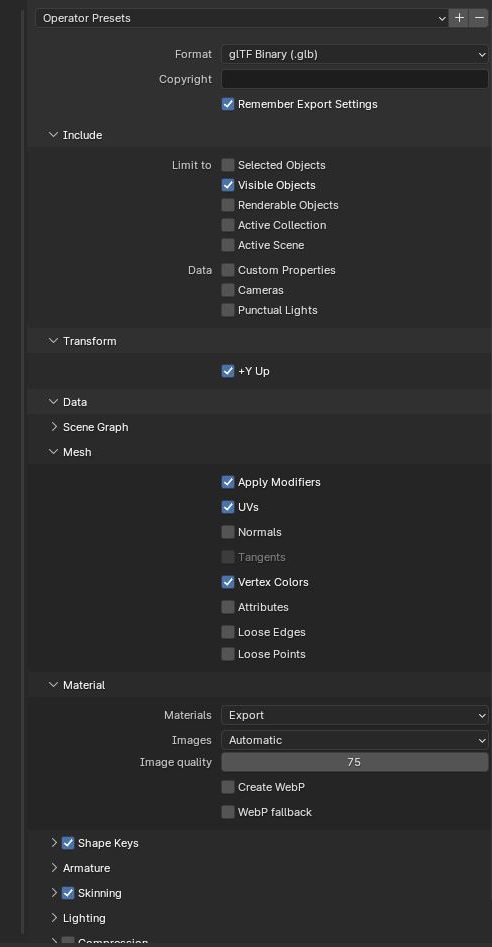
    NOTES:

    • Tick Visible Objects in case in your Blender Collection tree you have some objects that you want to keep as backup, so you duplicate them and then HIDE them. In this case you need this option so they are kept out of the GLB exported file.
    • Something makes a big difference in the exported file size. Sometimes it’s 15 MB and sometimes 2GB. It seems like when you tick “Mesh > Apply Modifiers” it has the lowest size, while keeping all the details.
  • Blender issue – materials colors are not assigned to the model

    Hi all. I had this issue a few times and I thought I should write a quick post about it in case it can helps others.

    So firstly, the model is an imported WRML format of an external work done in SolidWorks. It originally had textures and colours for various parts and objects, but when imported, the parts are not colored anymore.

    The main problem was when exporting as a GLB/GLTF file format, the entire model remained in one color.

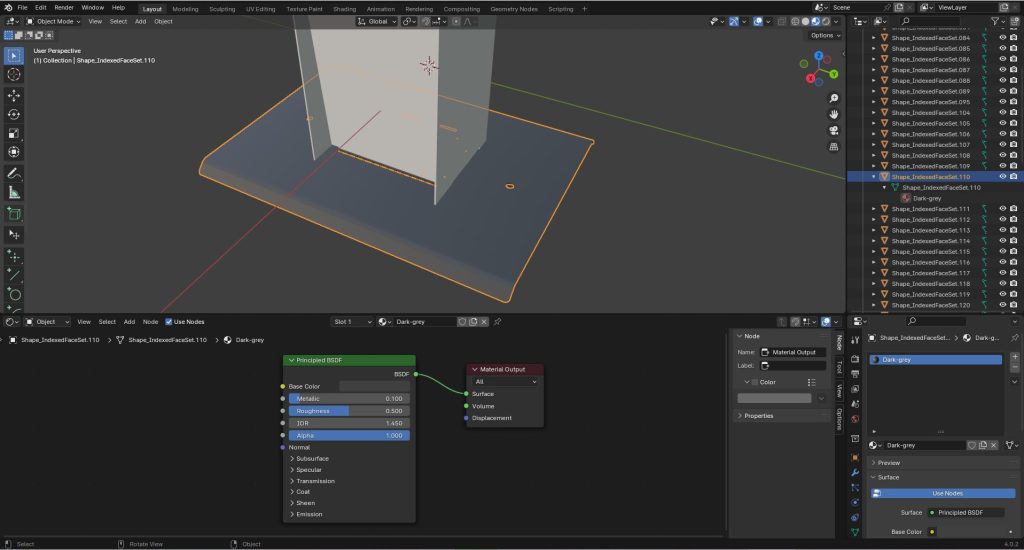
    SOLUTION: what worked is deleted the original color of the object (menu right under the Collection objects tree), then created a new material (i.e. Dark-gey) and left the default “Principle BDSF” and chose the desired colour.

    It help to maybe open at the bottom the Shade Editor (the shows the nodes that are actually used and how they work together) and make sure that the colour is outputted to the correct material.

    NOTE: there are quite a lot of EXPORT settings for the GLB format, so here are the ones that worked for this:

    Mesh: make sure these are ticked:
    – UVs
    – Normals
    – Vertex Colors

  • OOP in PHP for mid-level developers

    These are my own documentation to help me get more into the OOP coding style, from the position of using functional PHP professionally for quite a while. So these are just some notes, but I thought to make them public in case they might be useful to anyone else:

    The four pillars for OOP are Abstraction, Encapsulation, Inheritance, Polymorphism.

    1. Abstraction: Abstraction is the process of showing only essential/necessary features of an entity/object to the outside world and hiding other irrelevant information. For example, to open your TV we only have a power button, It is not required to understand how infra-red waves are getting generated in TV remote control.
    2. Encapsulation: Encapsulation means wrapping up data and member function (Method) together into a single unit i.e. class. Encapsulation automatically achieve the concept of data hiding providing security to data by making the variable as private and exposing the property to access the private data which would be public.
    3. Inheritance: The ability to create a new class from an existing class. Inheritance is when an object acquires the property of another object. Inheritance allows a class (subclass) to acquire the properties and behaviour of another class (super-class). It helps to reuse, customize and enhance the existing code. So it helps to write code accurately and reduce the development time.
    4. Polymorphism: Polymorphism is derived from 2 Greek words: poly and morphs. The word “poly” means many and “morphs” means forms. So polymorphism means “many forms”. A subclass can define its own unique behaviour and still share the same functionalities or behavior of its parent/base class. A subclass can have their own behavior and share some of its behavior from its parent class not the other way around. A parent class cannot have the behavior of its subclass.

  • Online 3D Viewer for Websites – Features, Benefits & Examples

    Online 3D Viewer for Websites – Features, Benefits & Examples

    In today’s digital landscape, creating immersive and engaging online experiences is essential for capturing the attention of your audience. Whether you’re in the gaming industry, real estate, e-commerce, or simply looking to add that wow factor to your website, a high-quality 3D player can make all the difference.

    That’s where our online 3D player, powered by Three.js, comes into play. In this article, we’ll introduce you to the exciting world of 3D online visualization and show you why our solution is the perfect fit for your projects.

    What is Three.js?

    Before diving into the magic of our 3D player, let’s shed some light on Three.js. It’s a popular JavaScript library that simplifies 3D graphics rendering in web browsers. By harnessing the power of WebGL, Three.js allows developers to create stunning 3D experiences without requiring users to install plugins or software. This means that your 3D content will be accessible to anyone with an internet connection and a modern web browser.

    Why Choose Our Online 3D Player?

    Our online 3D player offers a plethora of advantages that set it apart from the competition:

    1. Stunning Visuals: Our 3D player boasts impressive graphics and realism. It’s perfect for showcasing products, properties, or game environments in the most captivating way possible. You can see it in action right now on our demo page here.
    2. Cross-Platform Compatibility: Thanks to the power of Three.js and because it’s embedded directly in a browser – any browser – our 3D player works seamlessly on desktops, laptops, smartphones, and tablets. Your audience can interact with your 3D content no matter their device.
    3. Customizability: We understand that every project is unique. That’s why our 3D player is highly customizable, allowing you to tailor it to your specific needs and branding requirements.
    4. User-Friendly Interface: Our player comes with an intuitive user interface, making it easy for your audience to explore and interact with 3D objects. No prior 3D experience required! We are constantly working on adding more options and making it even more user-friendly.
    5. Performance Optimization: We’ve fine-tuned our 3D player for optimal performance. It loads quickly, ensuring your users won’t be stuck for ages waiting for content to appear.

    Applications of Our Online 3D Player:

    The versatility of our 3D player opens up a world of possibilities for various industries and projects:

    1. E-commerce: Display your products in 3D, letting customers view items from every angle. This boosts confidence and drives sales.
    2. Education: Enhance online learning experiences with 3D models and simulations, making complex concepts easier to understand.
    3. Engineering and Design: Collaborate on 3D projects with colleagues or clients, visualizing designs and prototypes more effectively.
    4. Real Estate: Give potential buyers a virtual tour of a property, allowing them to explore every room and detail from the comfort of their own home.
    5. Gaming: Create interactive 3D character visualization environments that captivate players and immerse them in your gaming world.

    How to Get Started:

    Ready to take your project to the next dimension with our online 3D player? It’s as simple as reaching out to us. Contact us through our website, and we’ll be happy to discuss your project’s unique needs and provide you with a quote. Our experienced team of developers is here to turn your vision into reality.

    Conclusion:

    In the ever-evolving digital landscape, staying ahead of the curve is crucial. Our online 3D player, built on Three.js, offers a stunning and accessible way to engage your audience and elevate your projects to new heights. Whether you’re in real estate, e-commerce, gaming, education, or any other industry, our 3D player is the perfect tool to showcase your products and ideas. Don’t miss out on the opportunity to leave a lasting impression on your audience.
    Click here to see it in action: www.webcreative.me/3d-viewer-service/
    Contact us today, and let’s bring your 3D vision to life!